
The No File Rubric Grading feature is a utility within the Bulk Upload instructor submission interface. It allows instructors to automatically submit an empty “placeholder” pdf submission for every active student on a specific gradeable.
An example of when this would be useful is for an assignment (like a presentation) where students do not have anything to submit to Submitty, but the instructor still wishes to grade them through Submitty.
In this case, an instructor can use the No File Rubric Grading feature to enable rubric grading for all students.
How to Use this Feature
-
Create the Gradeable: Ensure your gradeable is set to the type: “TA/Instructor will (bulk) upload scanned .pdf”.
-
Access the Submission Page: Navigate to the gradeables page and click the Bulk Upload tab.
-
Click “No File Rubric Grading”: This button is located near the top of the Bulk Upload section alongside the other submission modes.
-
Click “Submit Placeholder for Every Student”: This will actually submit the pdf placeholders for every student on the gradeable. After confirming, a message will appear at the top of the screen displaying the successful number of submissions made.
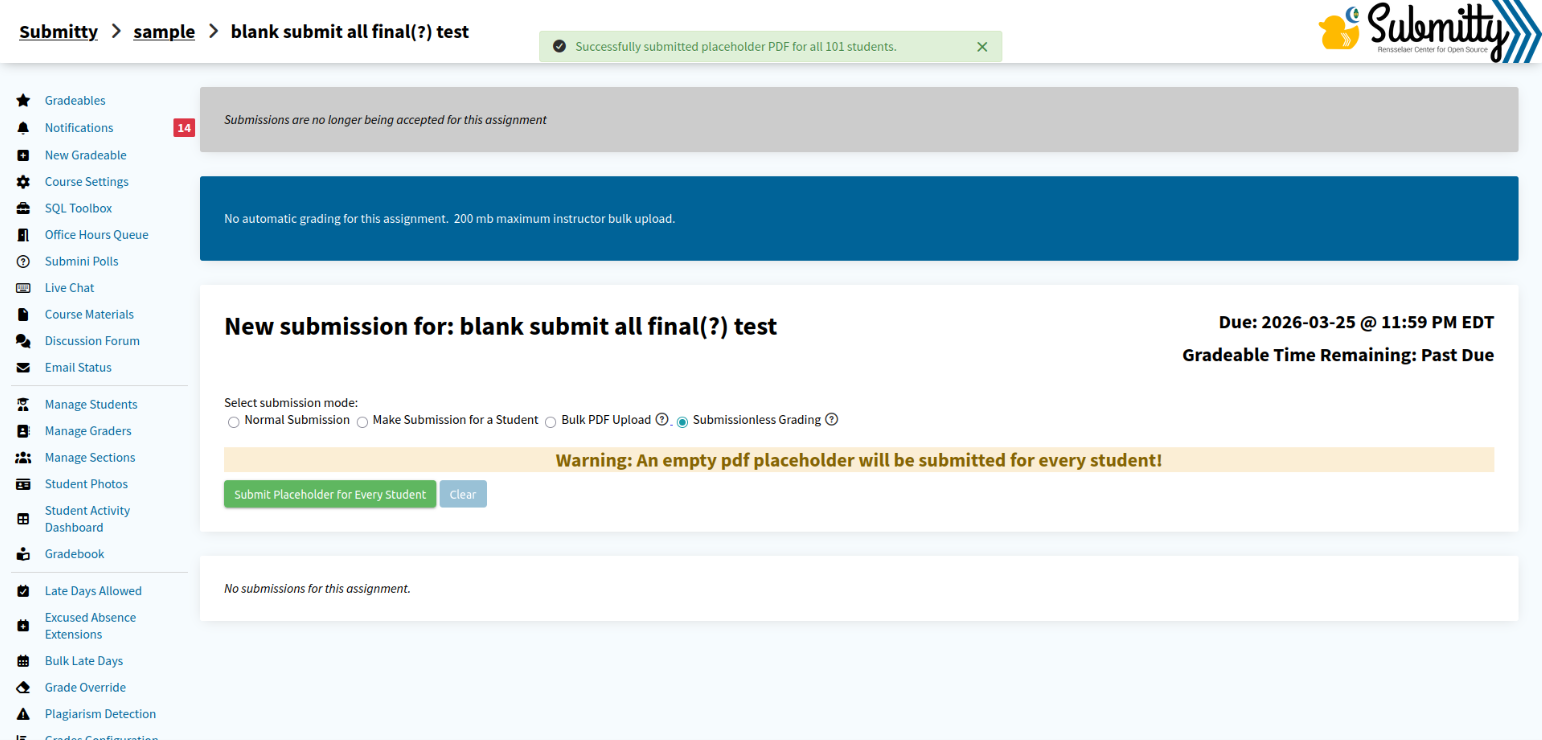
Important: This action will create a new submission for all students on the gradeable. It will appear as the student’s active version within the grading view and on the database. It will not erase any previous submissions.
Team Gradeables
Instructions for using this feature with Team Gradeables:
- Create the Teams: You must manually create the teams for the students by navigating to grade > edit teams from the gradeables page.
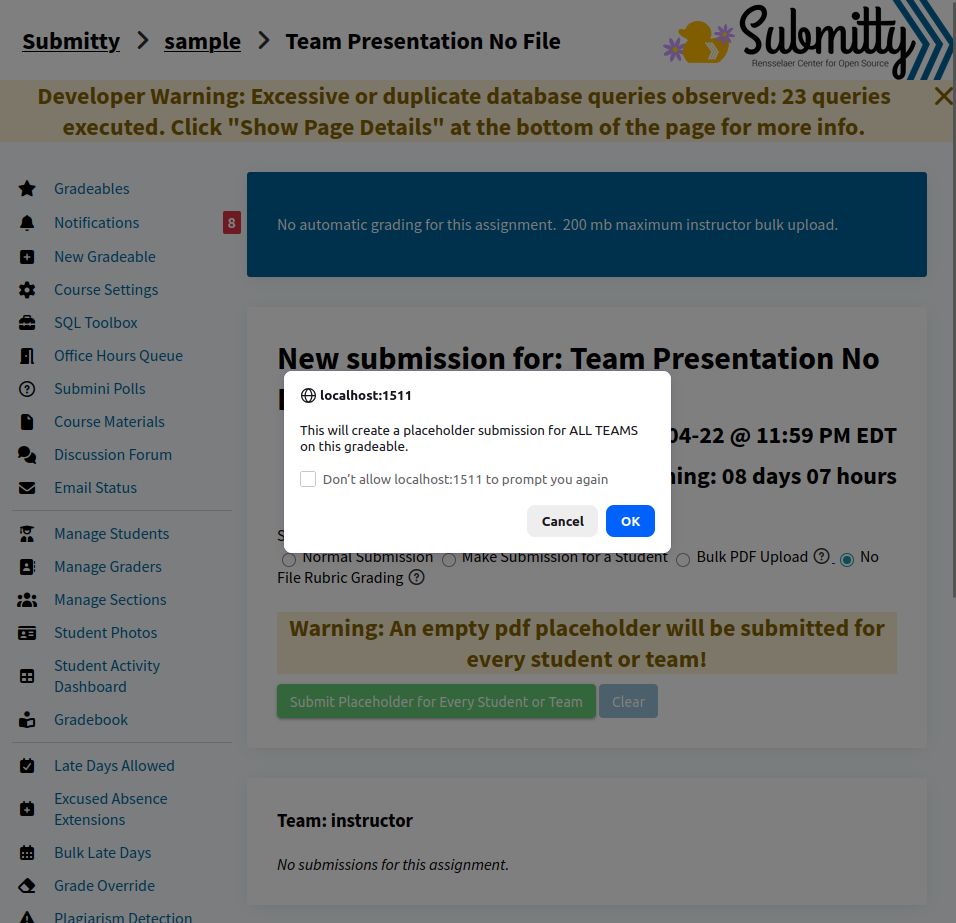
- Submission: Once teams have been set, you may use the feature. The popup will now inform you are submitting for teams, and the success banner will state the number of teams that were submitted for.
- All other aspects of the feature are the same as above.
Grading
Once the submissions have been processed, they can be graded like any other student submission. They will be listed as a new version under the student’s version status. Further uses of the function (while uneccessary) will simply increment the version number.
Troubleshooting
Ensure you are logged in as an Instructor level user.
Full grading access is required to use this feature.